SUNY Broome Brightspace Basics for Students
The SUNY Broome Brightspace Basics for Students tutorial was created to help students become familiar with the Brightspace user interface and learn how to find course content, participate in discussions, submit assignments, and take quizzes and exams. It will also show you where you can find your grades and monitor your progress throughout the semester.
While we encourage ALL students to complete this tutorial prior to the start of the semester, you might find that some of your instructors will require you to complete the tutorial modules and submit the completion certificate as an early activity in their course. Instructions for accessing SUNY Broome Brightspace Basics for Students, completing the modules, and generating your completion certificate are below.
Accessing and Completing SUNY Brightspace Basics for Students
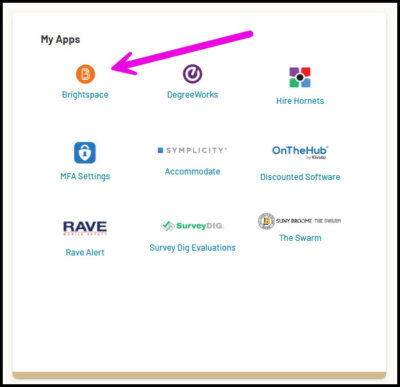
Log into Brightspace by selecting its link on the My Apps widget in MyCollege.
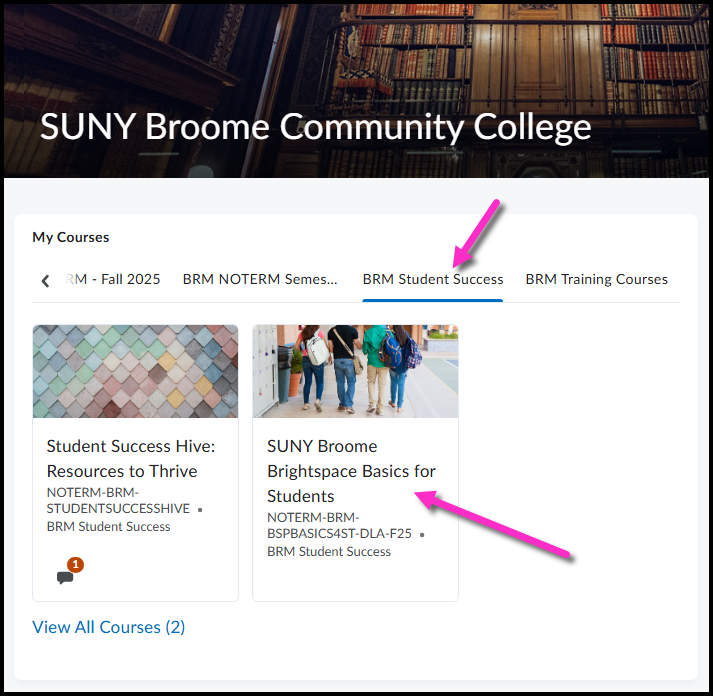
Select the tile for the SUNY Broome Brightspace Basics for Students on the My Courses widget on the Home Page. You may need to first select the “BRM Student Success” tab at the top of the My Course widget.
Once you are in the orientation, you will see 5 module tiles. You must go through and complete ALL of these modules in order to receive your completion certificate.

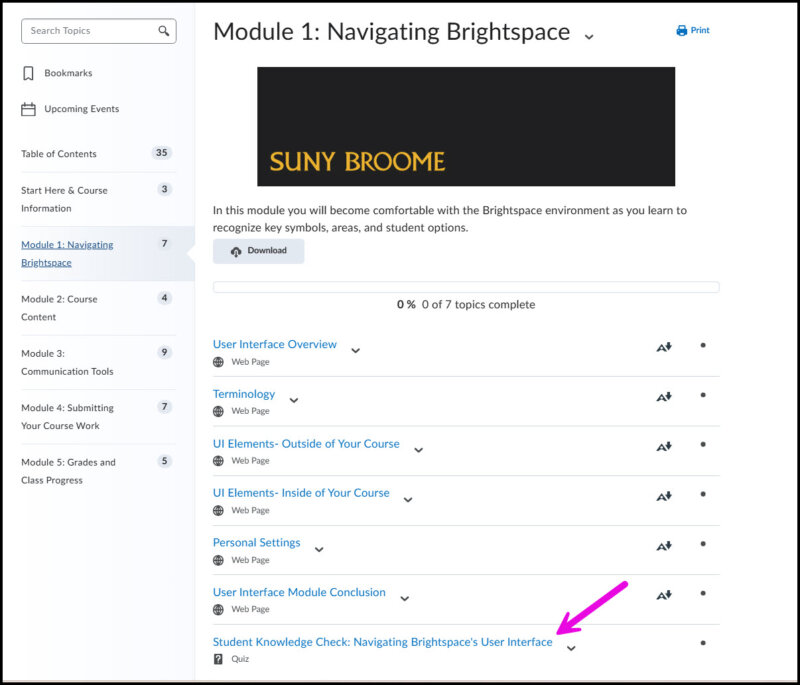
Be sure to read all of the material posted in the Start Here & Course Information module so you understand how the tutorial is structured and what will be covered. When you are ready to begin the modules, click on the module to begin. After reading all of the content posted within the module, you will be completing a “Student Knowledge Check ” You must get a 100% on each module’s Student Knowledge Check in order to complete the Orientation. An example of the layout of Module 1 is below. The arrow indicates the Student Knowledge Check for that module.
You must get a 100% on ALL FIVE (5) Student Knowledge Checks in the tutorial in order to receive your Certificate of Completion. You can take the Knowledge Checks as many times as necessary in order to achieve a 100% score. You can select the Grades link in the navigation bar at the top of the Brightspace screen to see your scores on all of the Knowledge Checks. When you confirm that you have successfully received all 5 100% scores, you will receive your Certificate of Completion.

Downloading your Certificate of Completion
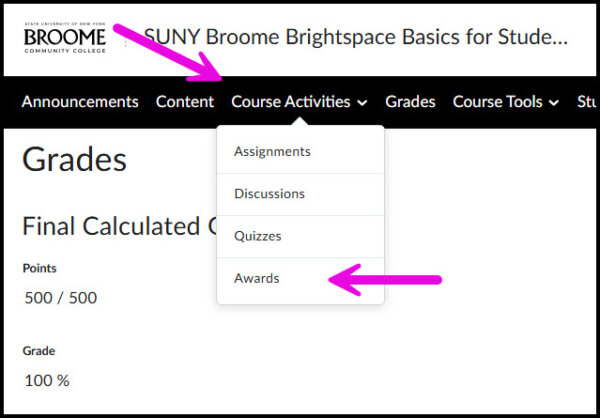
To access your certificate, select the Course Activities link in the navigation bar and select Awards.
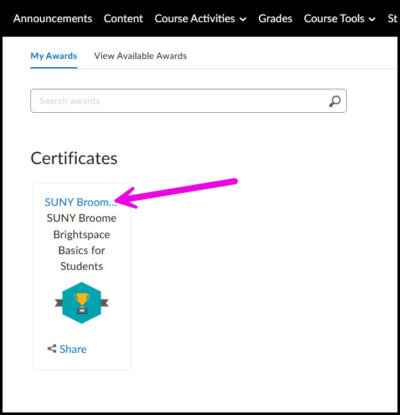
Click on the link for the award that you earned for the SUNY Broome Brightspace Basics for Students.
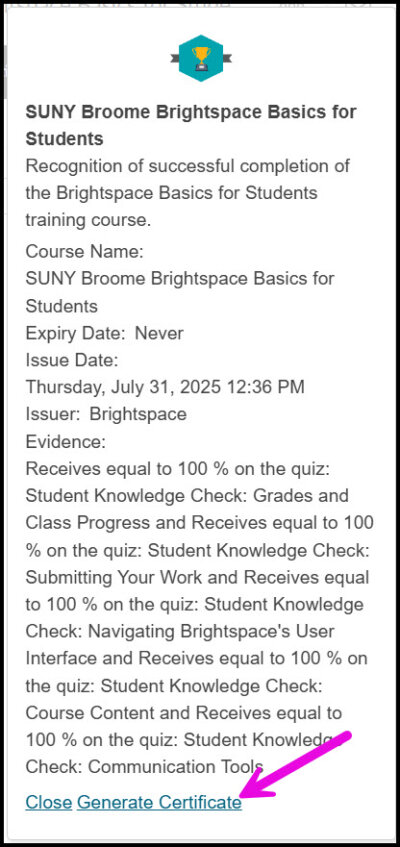
Select the “Generate Certificate” link at the bottom of the popup window. This will create a pdf that you can download and submit to your instructor if they require it for your course.
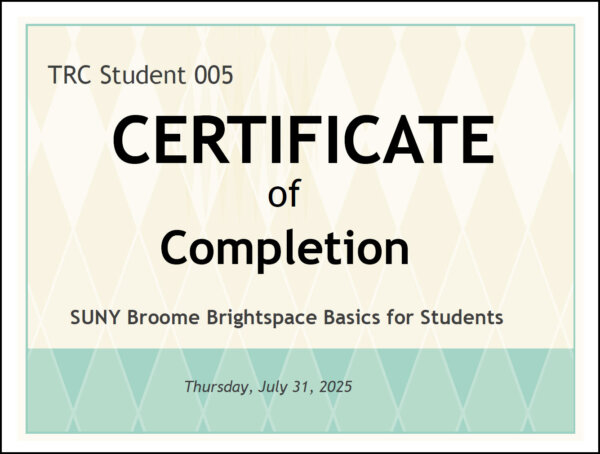
Your certificate will look something like this: